Trading Journal

Track your trades. Sharpen your edge.

Secured by Auth0

Traders Vault

Traders Vault

Coming Soon

We're building the vault. Access is invite-only for now.

Owner access

LogoTraders Vault

Dashboard

AI Credits
Accounts

PnL Balance

P&L$0.00
Win Rate—
Total Trades0
Avg R-Multiple—

Recent Trades

No trades yet. Start your journal by adding your first trade.

0 selected
Date Symbol Direction Entry Exit P&L
Connectors
+ Add Connector

API Key for this account (use in EA):

This key works for every connector in this account (MT4, MT5, cTrader).

Trade Calendar

P&L Performance

Win / Loss

Connectors

Connect your trading platforms to auto-sync trades to your journal.

MT4Download Expert Advisor

Security note: Traders Vault is only distributed from this website — this is the only place you can download our EA. If you find an EA anywhere else claiming to be Traders Vault, do not download it — we can't guarantee it isn't malicious. We will never trade on your behalf; the settings you enable here only let us read your closed trade history so it syncs to your dashboard.

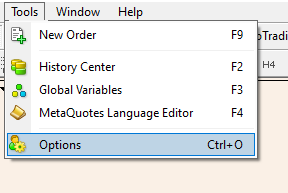
  1. In MetaTrader 4, open the top menu: Tools → Options
    Tools menu > Options
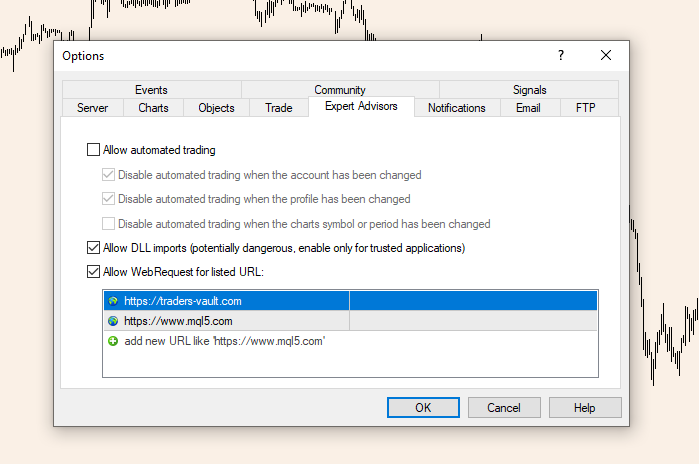
  2. This opens a pop-up. In the Expert Advisors tab, tick Allow DLL imports and Allow WebRequest for listed URL, select the URL input below and paste https://traders-vault.com , then OK
    Expert Advisors options
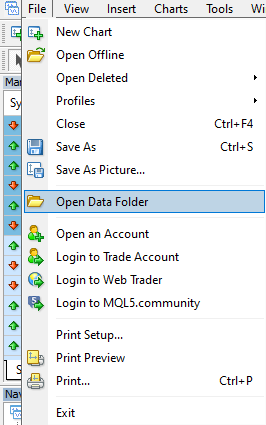
  3. In the top menu, open File → Open Data Folder — this opens a file explorer pop-up
    File menu > Open Data Folder
  4. In the file explorer, open the MQL4 folder, then the Experts folder, and drop in your downloaded traders-vault-ea-mt4.ex4 file
    MQL4 Experts folder
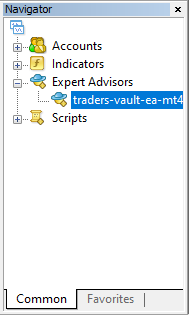
  5. In the Navigator panel (left side), expand Expert Advisors and drag traders-vault-ea-mt4 onto any chart
    Navigator > Expert Advisors
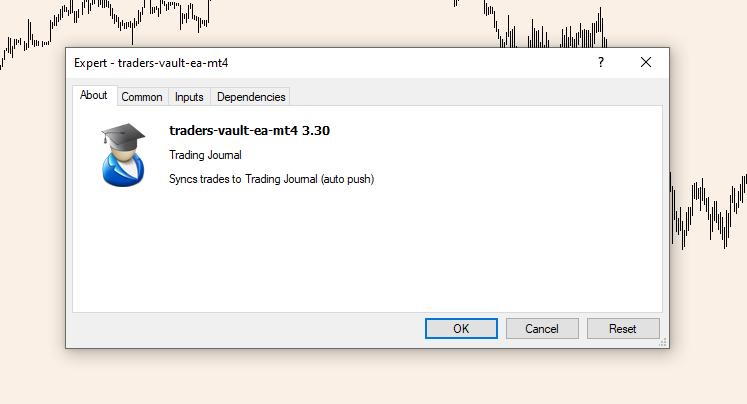
  6. The EA settings pop-up opens
    EA settings pop-up
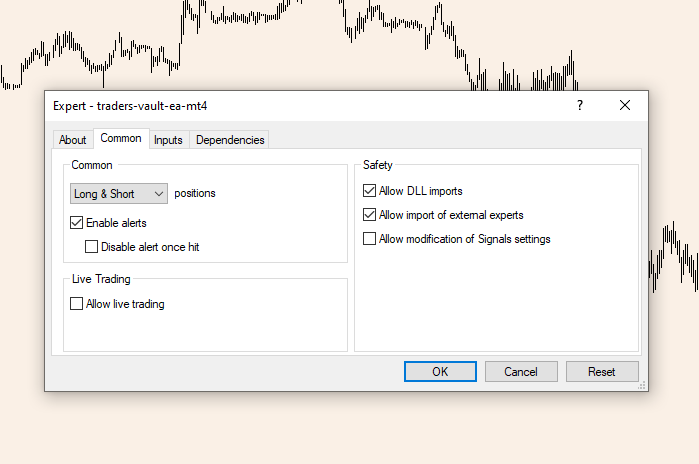
  7. Go to the Common tab and tick Allow DLL imports and Allow import of external experts
    EA Common tab
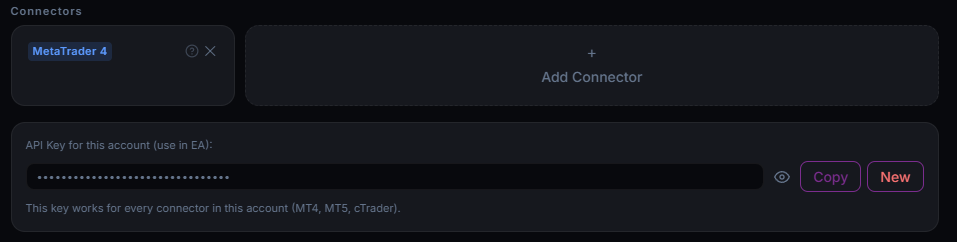
  8. In Traders Vault, open the sub-account you want to connect, scroll to Connectors, add a MetaTrader 4 Connector, then press Copy for the API key
    Connectors page
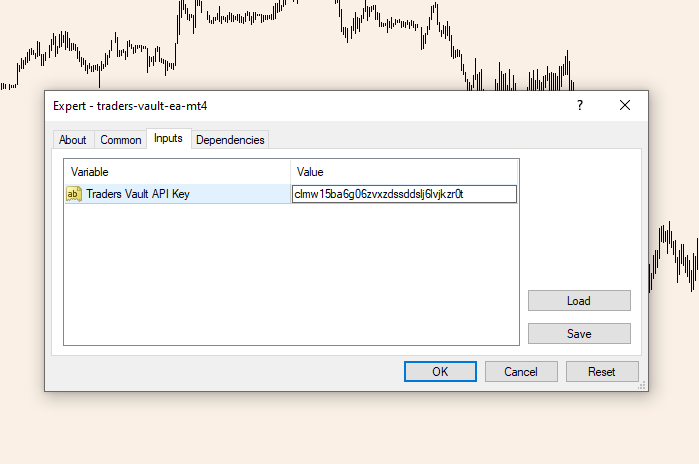
  9. Back in MetaTrader 4, go to the Inputs tab and paste your API key
    EA Inputs tab

Done — your trades now sync to your Traders Vault dashboard automatically, on every chart and every pair. Stuck? support@traders-vault.com

MT5Download Expert Advisor

Security note: Traders Vault is only distributed from this website — this is the only place you can download our EA. If you find an EA anywhere else claiming to be Traders Vault, do not download it — we can't guarantee it isn't malicious. We will never trade on your behalf; the settings you enable here only let us read your closed trade history so it syncs to your dashboard.

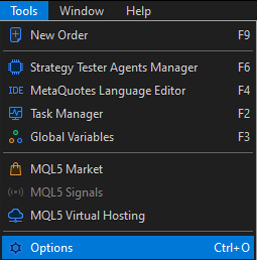
  1. In MetaTrader 5, open the top menu: Tools → Options
    Tools menu > Options
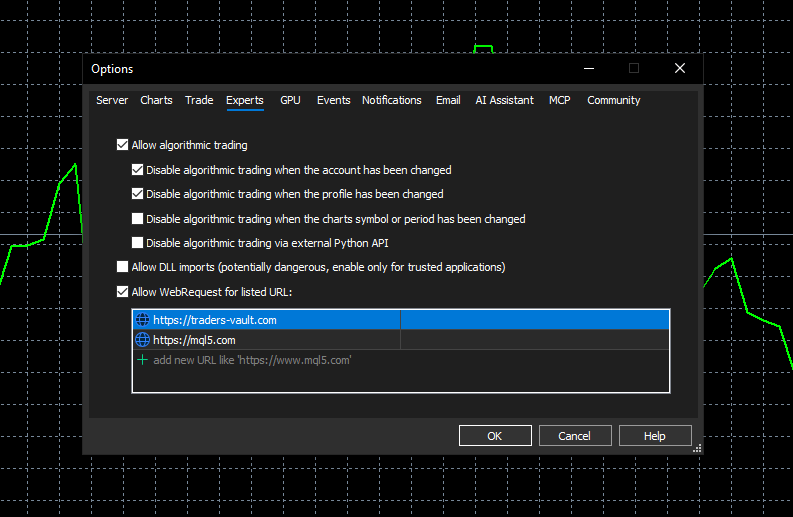
  2. This opens a pop-up. In the Expert Advisors tab, tick Allow algorithmic trading, Allow DLL imports and Allow WebRequest for listed URL, select the URL input below and paste https://traders-vault.com , then OK
    Expert Advisors options
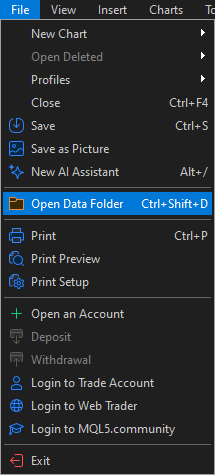
  3. In the top menu, open File → Open Data Folder — this opens a file explorer pop-up
    File menu > Open Data Folder
  4. In the file explorer, open the MQL5 folder, then the Experts folder, then the Advisors folder, and drop in your downloaded traders-vault-ea-mt5.ex5 file
    MQL5 Experts Advisors folder
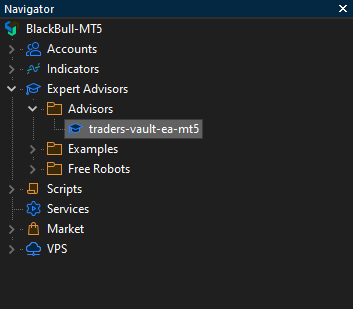
  5. In the Navigator panel (left side), expand Expert Advisors and drag traders-vault-ea-mt5 onto any chart
    Navigator > Expert Advisors
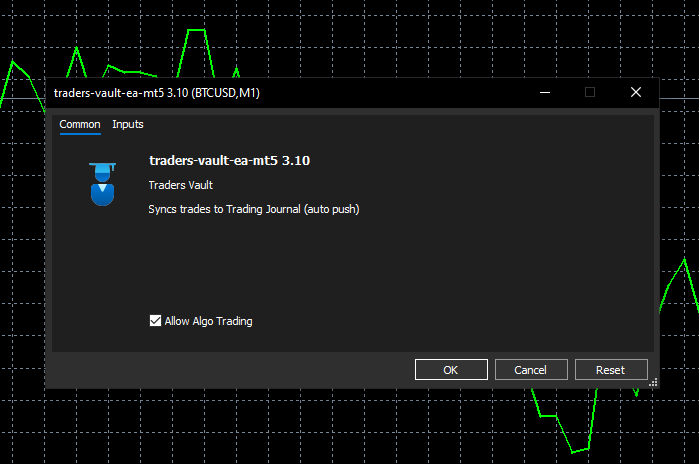
  6. The EA settings pop-up opens — tick Allow algorithmic trading
    EA settings pop-up
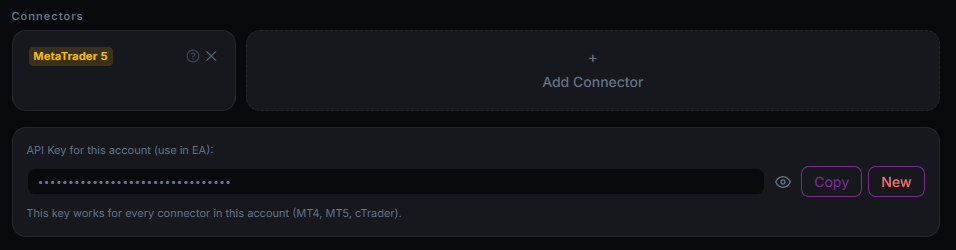
  7. In Traders Vault, open the sub-account you want to connect, scroll to Connectors, add a MetaTrader 5 Connector, then press Copy for the API key
    Connectors page
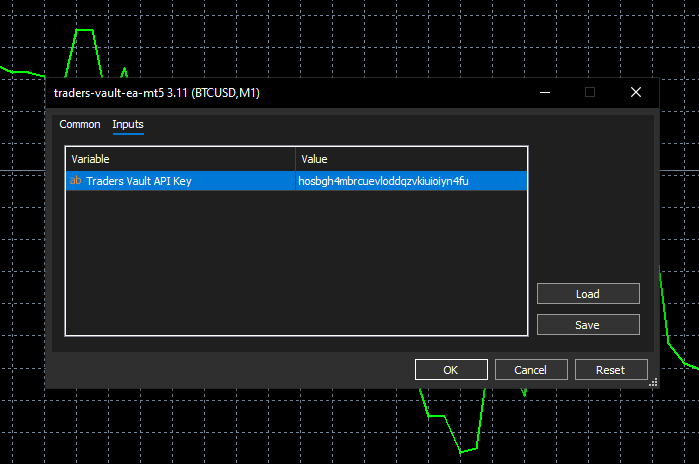
  8. Back in MetaTrader 5, go to the Inputs tab and paste your API key
    EA Inputs tab

Done — your trades now sync to your Traders Vault dashboard automatically, on every chart and every pair. Stuck? support@traders-vault.com

cTraderDownload cBot

Security note: Traders Vault is only distributed from this website — this is the only place you can download our cBot. If you find a cBot anywhere else claiming to be Traders Vault, do not download it — we can't guarantee it isn't malicious. We will never trade on your behalf; the settings you enable here only let us read your closed trade history so it syncs to your dashboard.

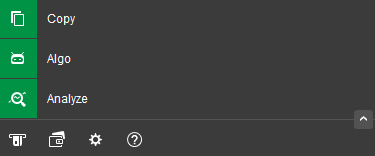
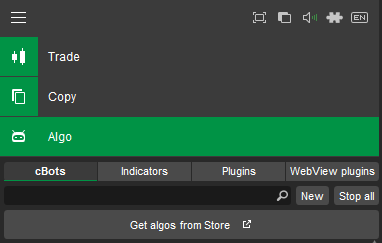
  1. On the left panel of cTrader, click the Algo button
    cTrader left panel - Algo button
  2. At the top, make sure cBots is selected, then click New (just below, to the right)
    cTrader Automate - cBots selected and New button
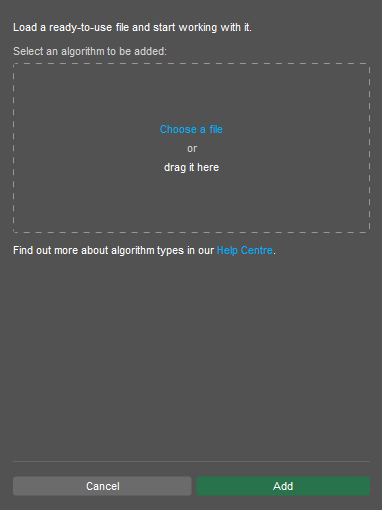
  3. A pop-up appears — click Choose a file and select your downloaded traders-vault-cbot-ctrader.algo
    Choose a file pop-up
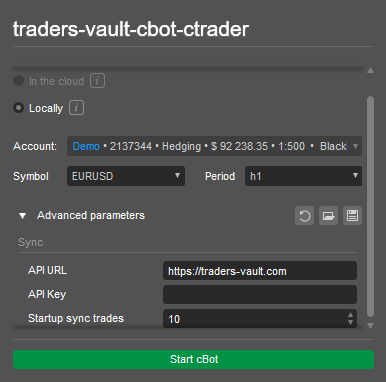
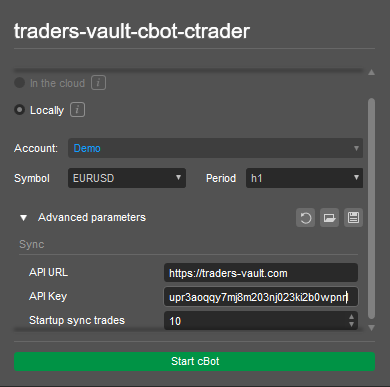
  4. Select the cTrader account you want to add it to, then open the Advanced parameters drop-down
    Select account and Advanced parameters
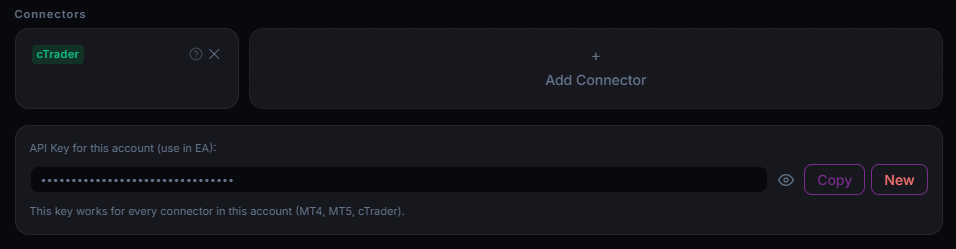
  5. In Traders Vault, open the sub-account you want to sync, scroll to Connectors, add cTrader, then press Copy on the API key below it
    Traders Vault connectors - API key copy
  6. Back in cTrader, paste the Traders Vault API key into the cBot’s API key input
    cBot API key input
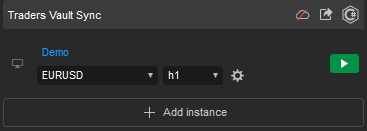
  7. On the left panel you’ll see Traders Vault Sync (scroll to the bottom if you don’t) — press Play on any chart and you’re good to go
    Traders Vault Sync in the left panel - Play

Done — your trades sync to your Traders Vault dashboard automatically on every close. Stuck? support@traders-vault.com

Need help? Download the file for your platform above, compile it in MetaEditor before use, and enter the API key from the dashboard connectors panel. Password-protect the compiled .ex4/.ex5 before distributing to users to protect your source code.

All Trades

No trades yet.

DateSymbolDirectionEntryExitP&L

Analytics

Coming soon — performance metrics and breakdowns.

Weekly Report

Week of —
→
$0.00
Win Rate—
Profit Factor—
Trades0
Equity Curve
P&L by Day
Best Day—
Worst Day—
Max Drawdown$0.00

Quant AI Insights

🔍
Pattern Spotted
—
⚡
Behavior Flag
—
📏
Consistency Note
—
👀
Watch This
—

Tag Performance

Powered by Quant AI

Analyzing your week...

AI Insights

Ask questions about your trading performance. Select a date range to focus the analysis.

Quant AI
Try something like:
AI
Hello! I can help analyze your trading data. Use the AI to analyze your trades — like "What's my win rate?" or "Which day of the week performs best?"

Affiliates

Feedback

Tell us what you think — bugs, ideas, anything.
Thanks — we read every message.

Tags

No tags yet. Add your first tag above.

Completing sign in...

Verify Your Email

We sent a verification email. Click the link in it to activate your account.

←

Manage Subscription

AI Credits
PlanFree
Status-
Renewal-
←

Manage Subscription

PlanFree
Status-

Add Connector

Regenerate API key?

This will invalidate the current key. You will have to change the API key manually in the trading platforms for all connectors.

Delete account?

This permanently deletes all of your trades, accounts, screenshots, reports, and subscription, and signs you out. This cannot be undone.

Filter by Tags

🎉 Welcome to Traders Vault

Congratulations on taking the leap. This is where discipline meets success — log your trades, review your numbers, and let consistency do the rest.

Pro Feature

This is a Pro-only feature. Unlock it now by subscribing.

Apply to become an affiliate and start earning

Tell us why we should choose you to be an affiliate.

0 / 250 words
Thank you for applying. Should you become successful, we will contact you.

You've clicked a referral link

To purchase and claim the discount, click here:

Notifications

P&L
+ Add Screenshot Click, drag & drop, or Ctrl+V to paste
Entry
Exit
Quantity
Trade Date
Notes
Tags
ID Created

Add Account

Add Trade